
It is a good idea to monitor your Hyper-V VMs to get an overview of where resources are being consumed. Microsoft unfortunately doesn’t offer much in this area, this is rather left to other 3rd party companies. Still, we can see a little bit how our VMs are doing. Let’s get started right away!
Enable-VMResourceMetering
We need the Enable-VMResourceMetering cmdlet for this. And a test VM. The configuration is easy and we can start immediately.
Note that Resource Metering is disabled by default!
Open PowerShell and check if metering is enabled.
Get-VM | Select-Object -Property Name,ResourceMeteringEnabled
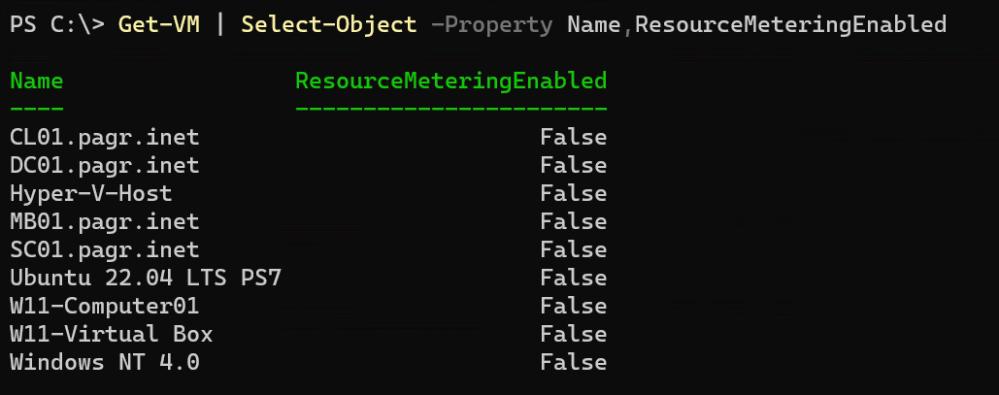
If you didn’t enable it manually, your output will look like mine.
Next, I’ll show an example of how to enable resource metering and then retrieve the data.
Get-VM 'SC01.pagr.inet' | Enable-VMResourceMetering
Get-VM 'SC01.pagr.inet' | Measure-VM

Now you have an overview how many resources the VM consumes.
Be aware that resource metering consumes resources on the Hyper-V host and you may want to disable this feature after some time.
Get-VM 'Server001' | Disable-VMResourceMetering
You have now seen how to enable metering for VMs.
Categories: PowerShell, Windows 10, Windows 11, Windows Server

 My name is Patrick Gruenauer. From Austria.


 SID-500.COM
3 replies »