
As an administrator, you should have an overview of your Active Directory environment. Of course, this also includes user and computer accounts . In this blog post I will carry out some PowerShell commands to get a list of domain-computers filtered by operating system. I will successively retrieve all enabled Windows Servers, Windows Clients and Domain-Controllers and display them separately. Finally I will query all domain-computers and sort them by operating system. Let’s go.
I will use PowerShell. If you want to join in, open PowerShell (powershell.exe) or PowerShell ISE (ise.exe).
Retrieve all Windows Server Computer
To retrieve all enabled Windows Servers sorted by operatingsystem, we need to target the operating system attribute.
Get-ADComputer -Filter 'operatingsystem -like "*server*" -and enabled -eq "true"' `
-Properties Name,Operatingsystem,OperatingSystemVersion,IPv4Address |
Sort-Object -Property Operatingsystem |
Select-Object -Property Name,Operatingsystem,OperatingSystemVersion,IPv4Address

Retrieve all Windows Client Computer
Windows Client computer doesn’t have the term server in its operating system attribute. Therefore we simply change the code above and set the operating system query to -notlike server.
Get-ADComputer -Filter 'operatingsystem -notlike "*server*" -and enabled -eq "true"' `
-Properties Name,Operatingsystem,OperatingSystemVersion,IPv4Address |
Sort-Object -Property Operatingsystem |
Select-Object -Property Name,Operatingsystem,OperatingSystemVersion,IPv4Address

Retrieve all Domain-Controllers (no Member-Server)
To display all Domain-Controllers I decided to target on the computer account group membership. All Domain-Controllers are member of the group Domain-Controllers, which ID is 516.
Get-ADComputer -Filter 'primarygroupid -eq "516"' `
-Properties Name,Operatingsystem,OperatingSystemVersion,IPv4Address |
Sort-Object -Property Operatingsystem |
Select-Object -Property Name,Operatingsystem,OperatingSystemVersion,IPv4Address

Retrieve all Member-Server
To retrieve all servers that are not Domain-Controllers, run the following code.
Get-ADComputer -Filter 'operatingsystem -like "*server*" -and enabled -eq "true" -and primarygroupid -ne "516"' `
-Properties Name,Operatingsystem,OperatingSystemVersion,IPv4Address |
Sort-Object -Property Operatingsystem |
Select-Object -Property Name,Operatingsystem,OperatingSystemVersion,IPv4Address

Retrieve all Computer sorted by Operatingsystem
Last but not least, we retrieve all domain-computers by running the following code.
Get-ADComputer -Filter 'enabled -eq "true"' `
-Properties Name,Operatingsystem,OperatingSystemVersion,IPv4Address |
Sort-Object -Property Operatingsystem |
Select-Object -Property Name,Operatingsystem,OperatingSystemVersion,IPv4Address

Customize the output
For a nicer view you can add Out-Gridview at the end. This will open a graphical window. Or you want to save the output to a file. Then Out-File or ConvertTo-HTML can help.
Out-GridView
Get-ADComputer -Filter 'enabled -eq "true"' `
-Properties Name,Operatingsystem,OperatingSystemVersion,IPv4Address |
Sort-Object -Property Operatingsystem |
Select-Object -Property Name,Operatingsystem,OperatingSystemVersion,IPv4Address |
Out-GridView
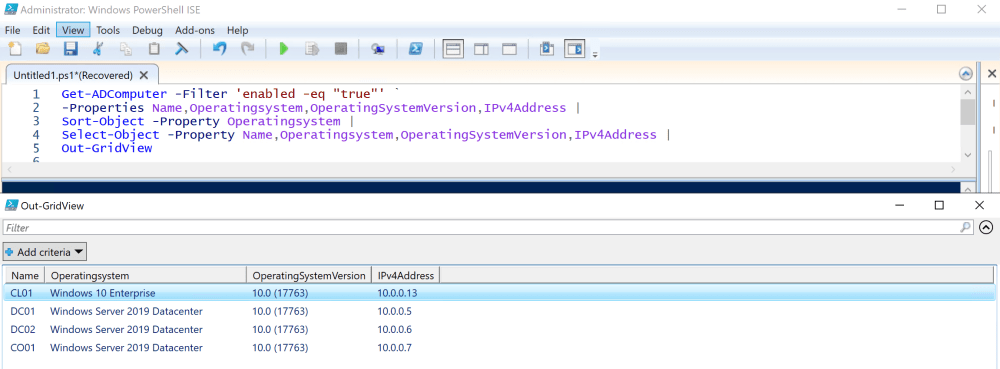
ConvertTo-Html | Out-File
If you want to save the output to a file, more precise in a HTML file, you can use ConverToHtml along with Out-File.
Get-ADComputer -Filter 'enabled -eq "true"' `
-Properties Name,Operatingsystem,OperatingSystemVersion,IPv4Address |
Sort-Object -Property Operatingsystem |
Select-Object -Property Name,Operatingsystem,OperatingSystemVersion,IPv4Address |
ConvertTo-Html | Out-File C:\Temp\listcomputer.htm

I hope I was able to help one or the other to get a documentation of his network, especially the Active Directory network.
See also
For a graphical menu of the topic, visit my blog post “Active Directory Domain Services Section”.
https://sid-500.com/2018/05/22/active-directory-domain-services-section-version-1-1/

Categories: PowerShell, Windows Server

 My name is Patrick Gruenauer. From Austria.



 SID-500.COM
thank you great specifically I need a power sell command to show only specific OS like windows seven or eight not any other OS if you help me I would be grateful
LikeLike
If you provide your approach I can help you. What have you tried so far ?
LikeLike
Thank you for this article, it is very useful.
One suggestion if I may is to filter out primary group 521 also (the primary group for RODCs) on the domain Member servers query.
LikeLiked by 1 person
Thank you!
LikeLike
Dear Mr. Patrick Gruenauer,
I want to check in a special time, which computer of the domain running microsoft Access. would you mind furnished me with the information about writing the Batch file?
kind regards
LikeLike
Very nice site , thank you
LikeLike
Thank you! You’re welcome.
LikeLike
very very nice thank you.
where can i find the commands for SSD/HDD, RAM, Graphics Card and CPU??
thank you
LikeLike
Where ca i get a full command list?
I need infos about the Graphicscard, Ram, SSD/HDD, Cpu?!?
Thx
LikeLike
Nice article, appreciate your work
LikeLiked by 1 person
Thank you!
LikeLike
Nice, thank you!
Unfortunately the “operatingsystemversion” seems to be “first-installation version” and is not up-to-date. e.g. after Win10 update from 1709 to 1809 it will still be 16229 (1709).
Any ideas?
LikeLiked by 1 person
Very Nice, thanks lot for your post. The best regards from Belgrade, Serbia from Zoran Tuvic.
LikeLiked by 1 person