
The default projector setting in Windows 10 is set to “Extend”. If you want to change that behavior, you have to press Windows key + P and select “Duplicate”. In this blog post I am going to show you how to change this default settings with the displayswitch.exe program. Additionally, I will describe how to change the default setting on multiple domain joined computers using Group Polices.
Projector Settings
Windows 10 provides 4 projector options that can be configured using the Windows Key + P key combination.
- PC screen only
- Duplicate
- Extend
- Second screen only

Set Duplicate as Default
Teachers often log into different computers in different class rooms. However, on any computer they log in for the first time, the projector settings are set to “Extend”. An – sometimes – unpleasant situation. So, we decided in our school to change that behavior. We created a batch file that sets the projector default setting to “Duplicate”. Here it is:
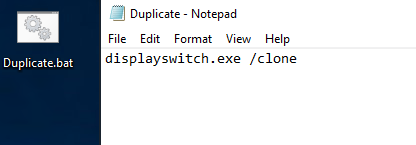
With the following one-liner in PowerShell, you can create the file and its content much faster.
New-Item -ItemType File -Path $home\Desktop -Name Duplicate.bat -Value "Displayswitch.exe /clone"
Distribute it via GPO
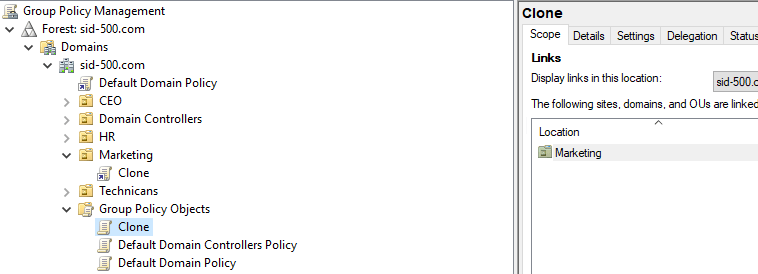
Now create a new GPO and configure the file as the login script for your users. Don’t forget to copy the file into the group policy folder of the policy you previously created.

Finally, link the GPO to the appropriate OU. In my example, it’s the Marketing OU.
Have fun!
Categories: PowerShell, Windows 10

 My name is Patrick Gruenauer. From Austria.


 SID-500.COM
Hi, thanks for a very informative post. Out of curiosity – in what scenarios are default Extend ‘unpleasant’? I would think that especially in situations where your second screen has an audience at the time of connecting it, a default of Extend would avoid sharing potential personal information that is visible on your primary screen.
LikeLiked by 1 person
FYI: In windows 11 the config is different:
1 = /internal 2 = /clone 3 = /extend 4 = /external
https://learn.microsoft.com/en-us/answers/questions/1036148/displayswitch-exe-behavior-on-windows-11-22h2
LikeLike
Thank you!
LikeLike
Could this be run as a logon script rather than a startup script?
LikeLike
Hello,
can you post a similar program for “PC screen only” option.
Thanks
LikeLike
This site is intended to help others with my own real life examples without expecting anything in return and definitely not a site for ordering something.
LikeLike
Hi Patrick,
Thanks so much for your guide but I’m a little confused.
The screenshot shows you adding the batch file into computer start-up settings but working says user logon settings. Can you clarify?
I’m trying to get it to duplicate but only on certain PC’s not for certain users.
Thanks
LikeLike
Hi, thank you for the comment. The screenshot is for show case only. Just wrap this script into a GPO and it should work. Best
LikeLike
When i duplicate display secon diplay turn off about every 5 min
LikeLike
This advice starts in the middle. How do I find the projection mode?
Useless.
LikeLike
Hi Patrick
thanks a lot, this helped me change the default behaviour to ‘extend’ – much more logical compared to duplicating.
LikeLiked by 1 person
You’re welcome
LikeLike
No, it starts right.
Windows Key + P.
If you find it useless, it’s ok. I do it for the community and if you don’t like my blog posts then look elsewhere. There are good bloggers around the globe.
Regards,
p
LikeLike